Guide
How to Add Music to Photos on iPhone: 4 Ways
Short answer
You can add music to photos on iPhone four ways: the Photos app's Memories, iMovie, Instagram while posting, or a template app like ReelClub. Memories is quickest, iMovie gives the most control, Instagram is easiest if you are posting there anyway, and templates give the most polished result with the least work.
- Decide where the finished video will live: your camera roll, Instagram, or both.
- Pick 6 to 15 photos and put them in the order you want.
- Choose a method: Photos Memories, iMovie, Instagram, or a template.
- Add a song and trim it to the part that fits the length of your video.
- Export or post, then watch it once with sound on before sharing.
How do you add music to photos on iPhone?
There are four practical ways: the Photos app’s Memories feature, iMovie, Instagram when you post, and a template app such as ReelClub. They sit on a spectrum from least effort to most control. Pick based on where the video will end up and how much time you want to spend. All four work on a modern iPhone and none needs a computer.
Which method is best for you?
| Method | Effort | Control | Result |
|---|---|---|---|
| Photos app Memories | Very low | Low | Automatic slideshow movie, simple look |
| iMovie | Medium | High | Fully custom video, you set every timing |
| Instagram when posting | Low | Medium | Photos with a song inside Instagram only |
| ReelClub template | Low | Medium to high | Designed 1080×1920 Reel with beat cuts, saved to Photos |
If you only want a quick slideshow for yourself, use Memories. If you want to control every second, use iMovie. If the video is only going on Instagram, adding music there is enough. If you want a designed Reel with text and motion, use a template.
How do you add music with the Photos app?
The Photos app can make a Memory movie from a selection of photos. Open the album or selection you want, create a Memory movie from it, and play it back. You can change the music from the options on the movie, and adjust the mood or length. It then saves as a video you can share. The result is automatic, which is the appeal and the limit: you cannot place every photo precisely, and the style is Apple’s, not yours. Menu labels shift between iOS versions, so look for the music and options controls on the movie itself.
How do you add music in iMovie?
iMovie is a free Apple app for iPhone and the most flexible option here. Start a new project, choose Movie, and select your photos. They appear on a timeline, where you can set how long each photo lasts. Then add audio from your music library or built-in soundtracks, and trim the audio to fit. You can add titles and transitions.
This is the route to choose if you want exact control. The tradeoff is time. For a 10-photo video, setting each duration to match a beat can take a while, and exporting for a vertical Reel means choosing the right format. For the timing rules, see how to make a Reel with photos on iPhone.
How do you add music in Instagram when posting?
Instagram lets you add a song to a photo post or to a Reel built from photos. Start a new post, choose your photos, and look for the music option before you share. Search or browse for a song and choose which part plays. This is the simplest method if the video never leaves Instagram, and it gives you access to the audio Instagram licenses.
The limit is that the result lives inside Instagram. You do not get a saved video file with the music in it, and the design options stay basic. Feature names change with app updates, so look for the music icon rather than a fixed menu path.
How do you add music with a ReelClub template?
ReelClub is an iPhone app that turns photos into Reels, carousels and stories using templates. For music, it works like this:
- Choose a Reel template and preview it full screen.
- Tap “Use template” and pick your photos.
- Open the music step. Each template has tracks matched to it, and there is a built-in music library.
- Choose the exact part of the song you want.
- Export. The Reel saves to your Photos app as a 1080×1920 video with the music cut to the beat.
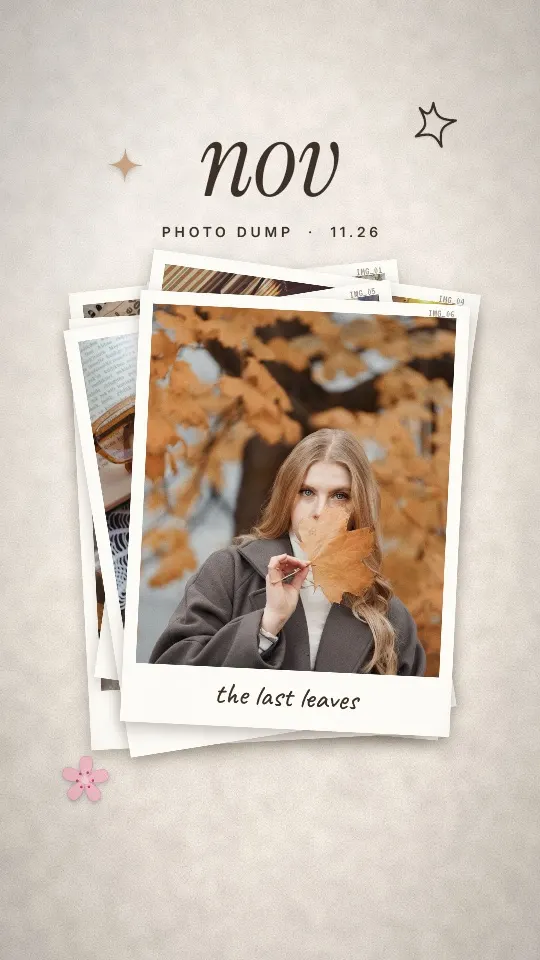
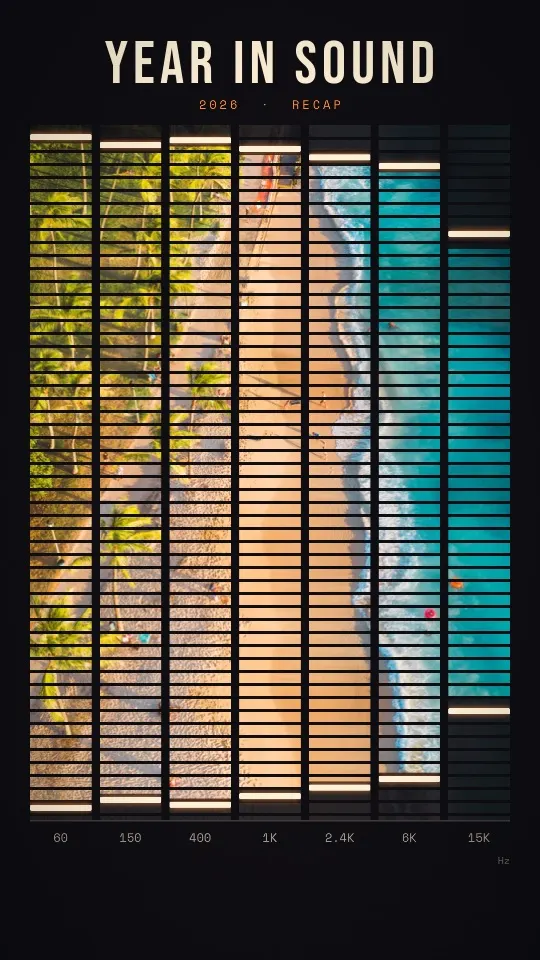
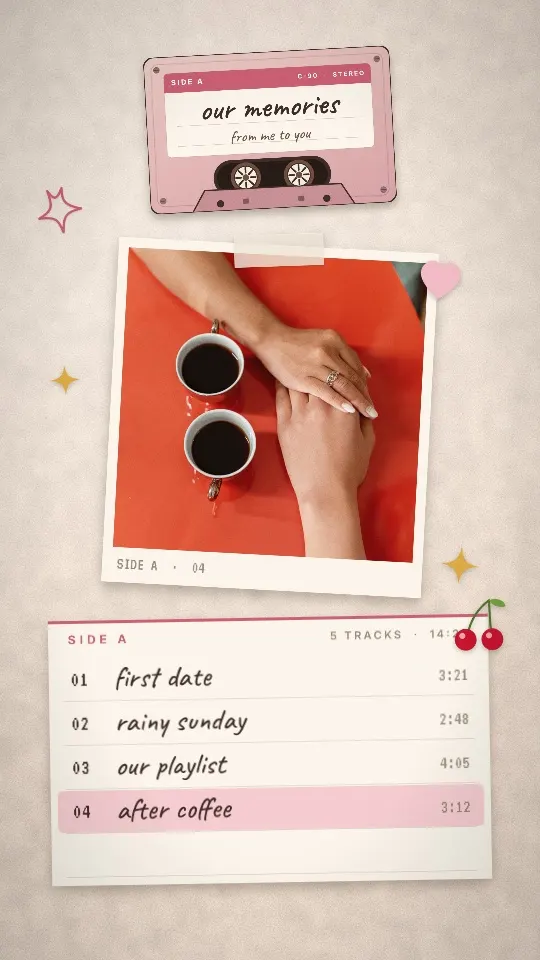
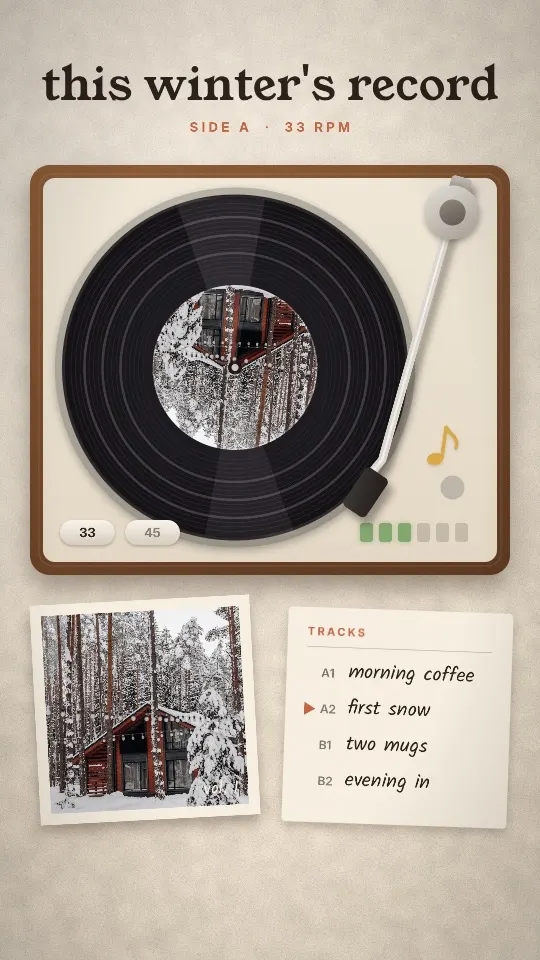
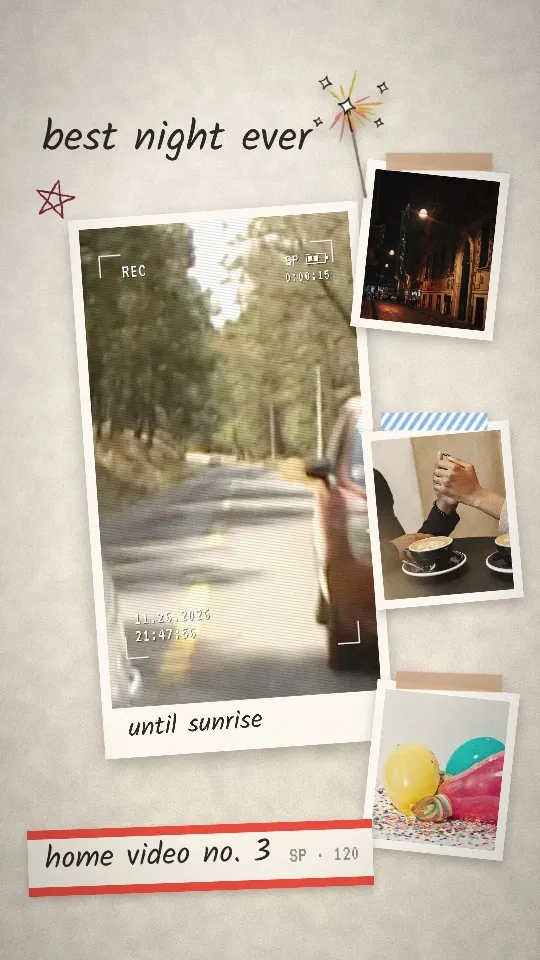
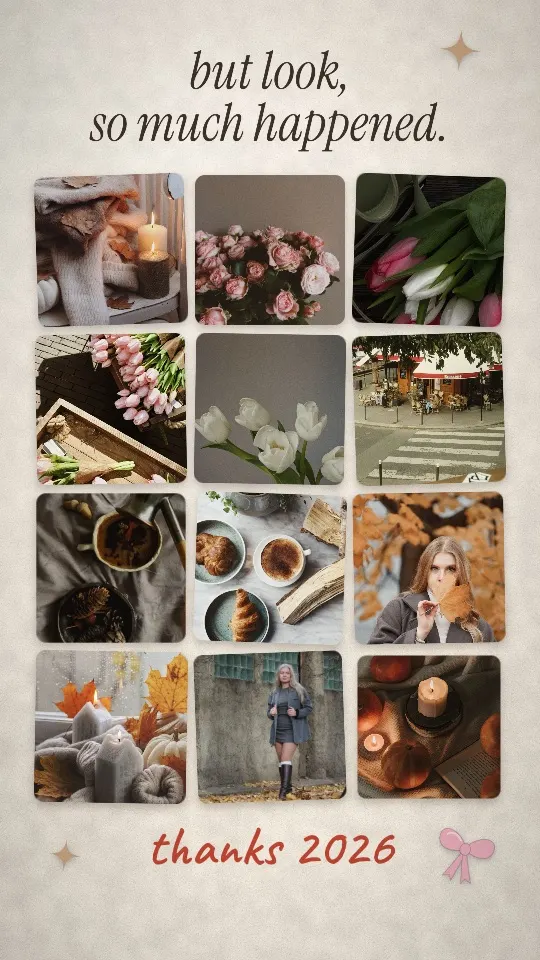
Good starting points are Equalizer, where the visuals move with the sound, Mixtape, Vinyl and Home video. For year-end videos, 2026 recap uses 12 photos. ReelClub has 170+ templates, 10 of which are free, and its trending-sound guide shows how to add a trending sound inside Instagram or TikTok when you post.
The tradeoff is that cut timing follows the template’s own tracks. If you want to build your own timing to a song you chose yourself, iMovie is the better tool.
How do you pick a song that fits your photos?
Match the song’s tempo to how fast you want to change photos.
- Slow songs (about 60 to 80 BPM): hold each photo 1.5 to 3 seconds.
- Medium songs (about 90 to 110 BPM): about 1 second per photo.
- Fast songs (120 BPM and up): 0.5 to 1 second per photo.
Pick a section with a clear beat early on. A quiet 8-second intro will waste half your video.
What should you check before you share?
- Is the volume balanced, with no clipping or sudden jump?
- Does the video fit the target format, 1080×1920 for Reels and stories?
- Do the first and last photos look good as stills?
- If you plan to post publicly, does the platform allow the song you used?
Which method should you actually choose?
If you are making one quick video for yourself, use Memories. If you are making a video for a special event and want every second to land, use iMovie. If you are posting on Instagram and want sound only, add it there. If you post regularly and want a polished look without building every video from scratch, a template app saves the most time. See photo to video app and the photo dump templates for examples, or the year in review collection if you are making a 2026 recap.